
Quick answer: aggressive spin down can do more harm than good
For many NAS owners, hard drive sleep sounds like an easy way to save electricity and extend storage life. After years of home servers, media libraries, backup systems and self-hosted apps, the practical answer is different.
For most active NAS setups, constantly spinning drives down may be worse than simply leaving them running during normal usage hours.
Media libraries, metadata and transcodes can wake storage often.
Containers can write logs, databases and app state in the background.
Smart home history and integrations can touch disk regularly.
Scheduled jobs need predictable availability and stable throughput.
Do not tune a home server only around saving a few watts. Tune it around reliability, responsiveness and how the NAS is actually used.
NAS drives are designed for 24/7 operation
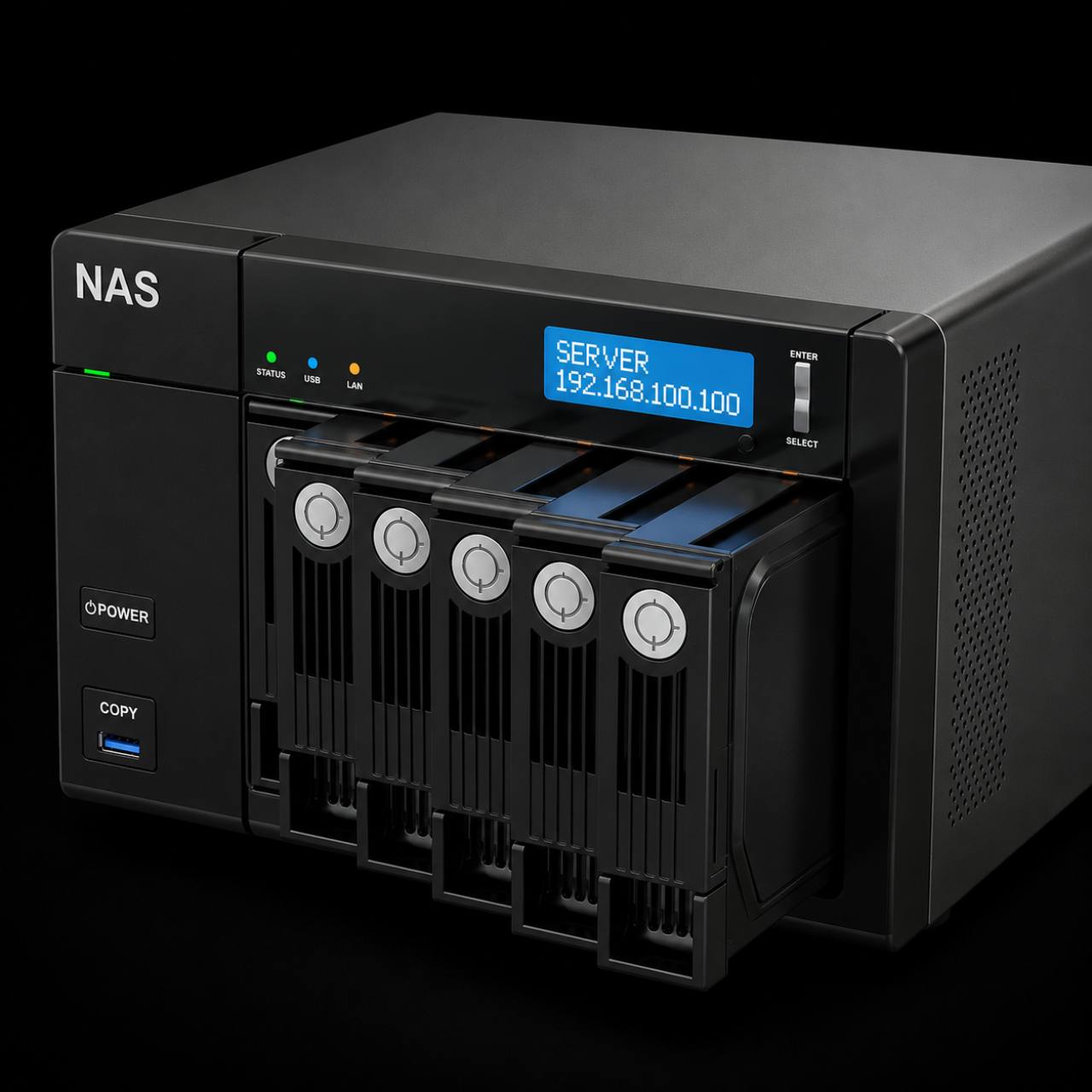
Unlike standard desktop hard drives, NAS-specific drives are engineered for continuous environments where data may be accessed at any time by media servers, backups, containers, virtual machines, security cameras and file shares.
Even when you are not manually copying files, your NAS may still be scanning, indexing, recording, syncing or writing logs in the background. That background work is exactly why aggressive sleep timers often fight the way a home server actually behaves.
The hidden problem with spin down
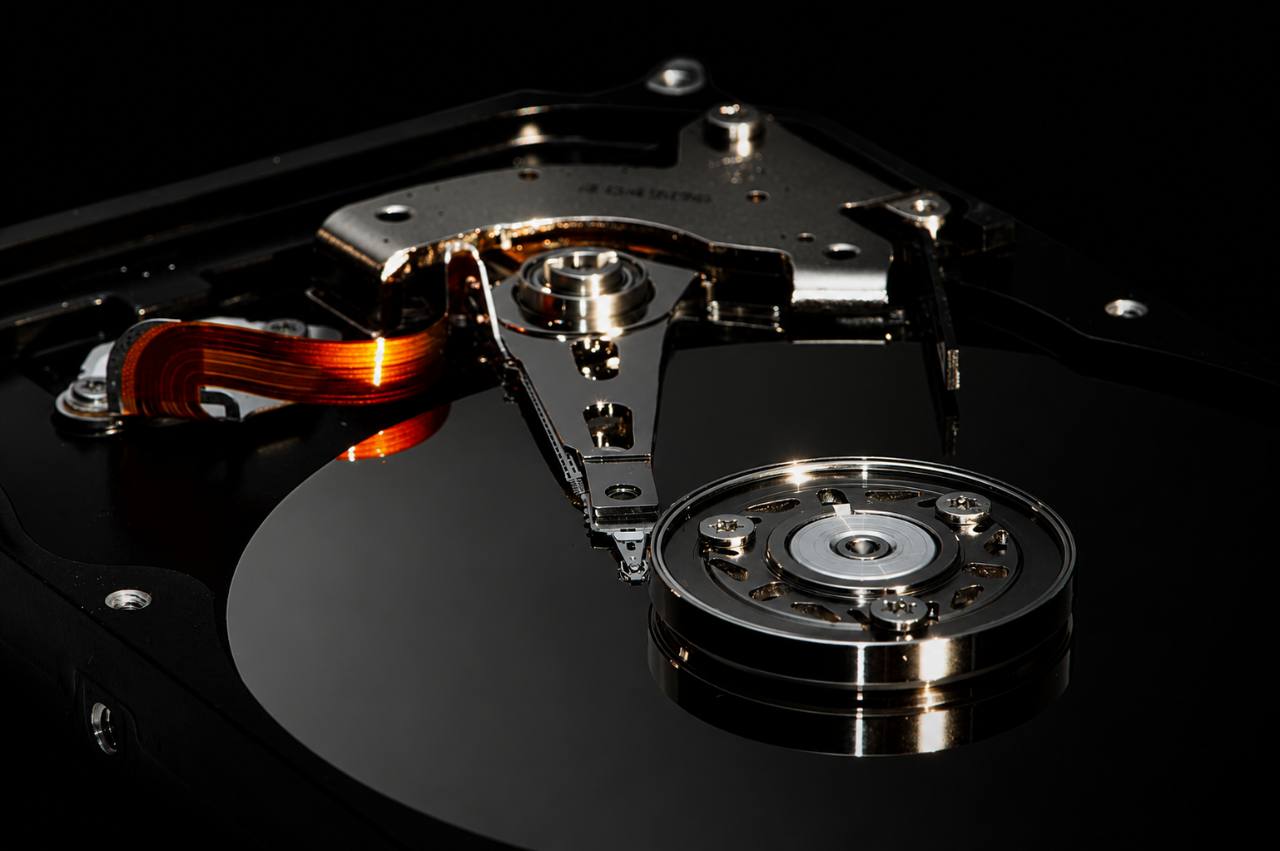
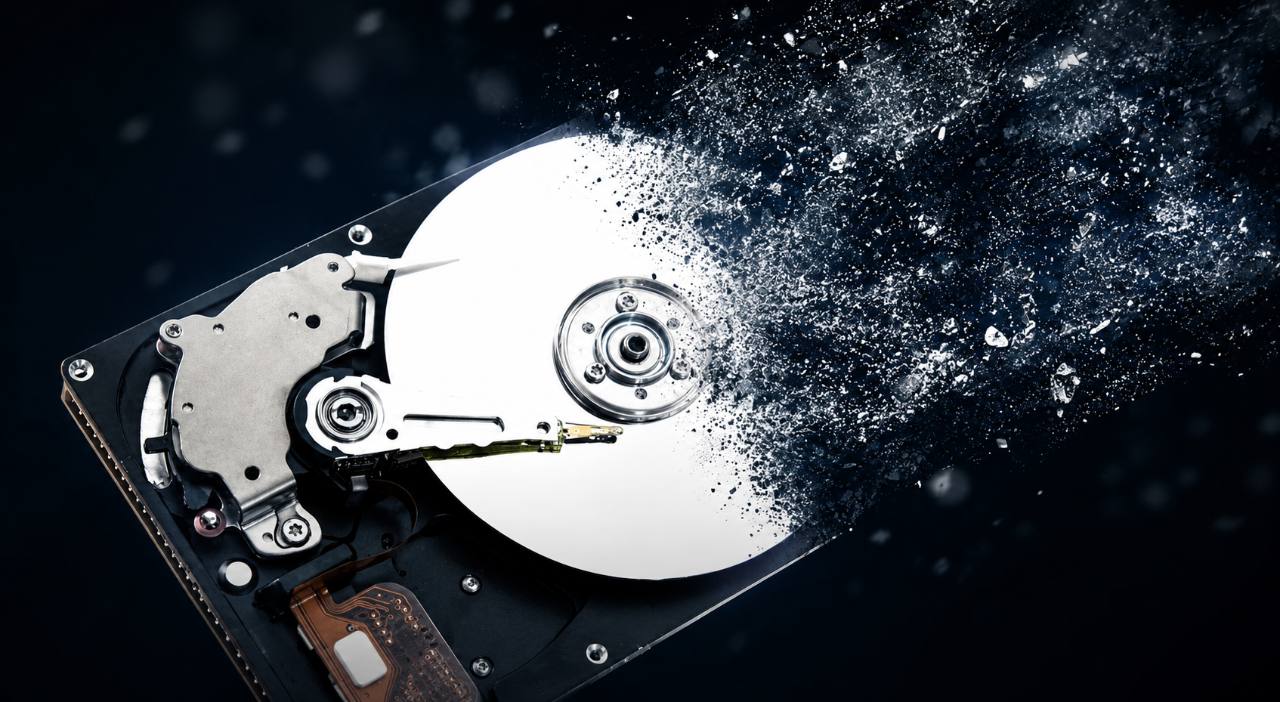
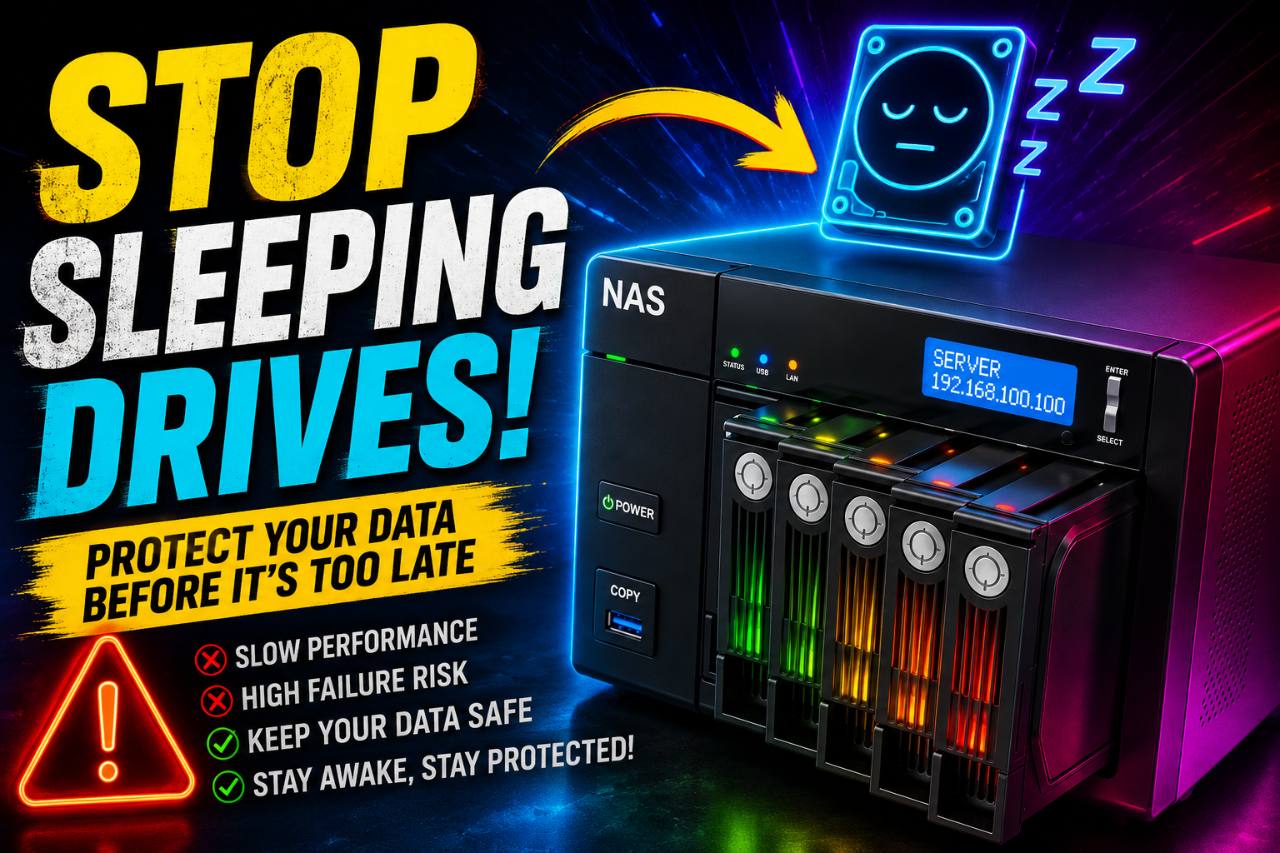
Every time a hard drive wakes from sleep, the motor has to accelerate the platters from zero to thousands of RPM. That startup process puts stress on mechanical parts such as the spindle motor and bearings.
If your NAS spins drives down every 15 or 30 minutes only to wake them shortly afterward, those repeated start-stop cycles can become more stressful than leaving the drives spinning. It is like city driving versus highway driving: constant stopping and starting is often harder than steady speed.
| Use case | Better setting | Why |
|---|---|---|
| Plex / Jellyfin | Keep spinning during active hours | Media browsing and playback should respond quickly. |
| Docker / apps | Avoid aggressive sleep | Apps can write logs, databases and cache files often. |
| Backup archive | Longer idle timer can work | If it is rarely accessed, sleep is more reasonable. |
When drive sleep still makes sense
There is not one perfect setting for every NAS. If your NAS is mostly a cold backup archive that wakes only for a scheduled backup or occasional restore, a longer idle timer can be reasonable.
The key word is longer. A very short timer can create more annoyance than savings. For archive-style storage, think in hours instead of minutes, and make sure your backup window is not constantly interrupted by disks waking one by one.
If you keep asking why the NAS feels slow the first time you open it, the sleep timer is probably too aggressive for your workload.
HDD vs SSD for a NAS
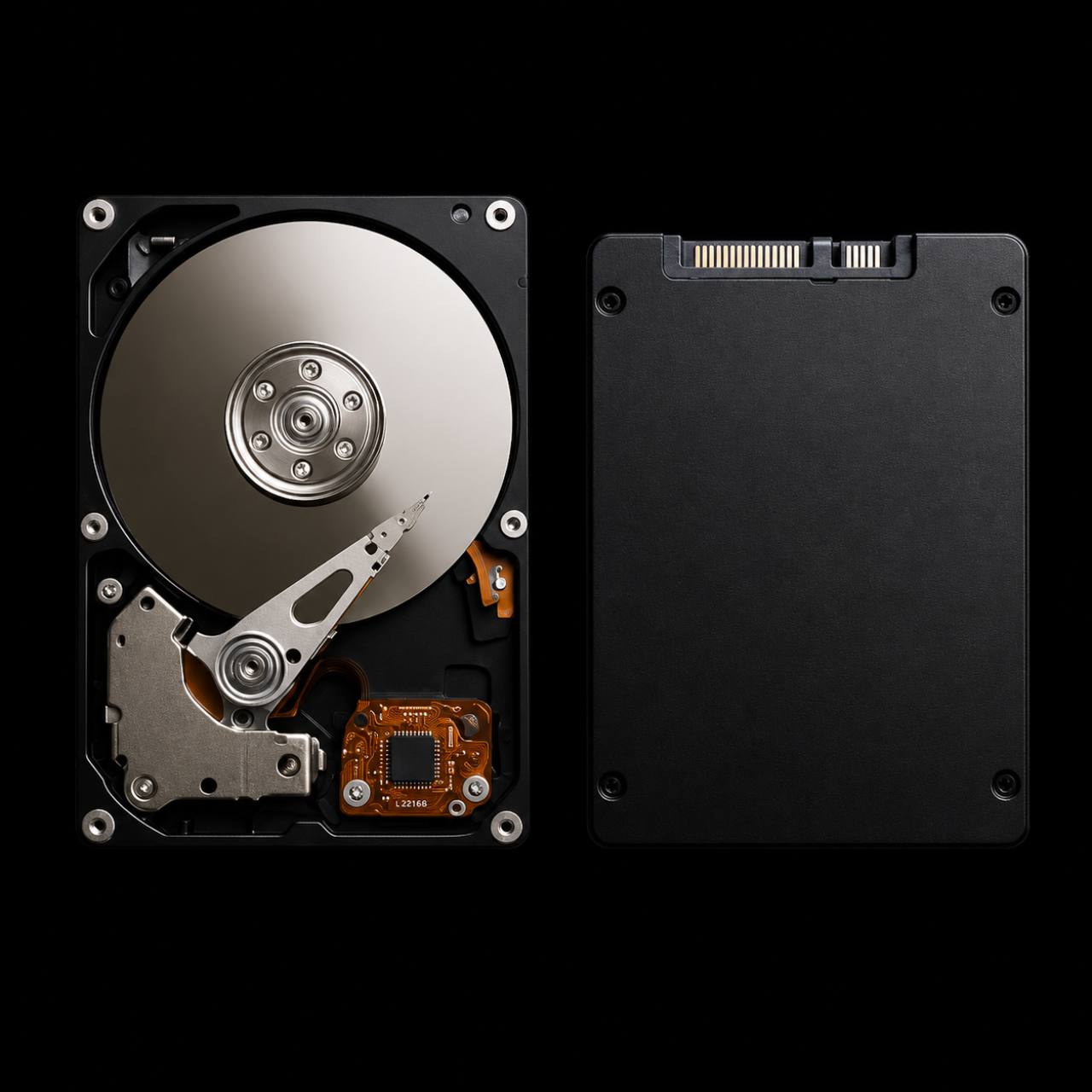
Choosing the right storage matters as much as configuring spin down correctly. Many NAS owners get the best result by combining HDDs for bulk storage with SSDs for speed-sensitive workloads.
Hard drives: best for big storage
Traditional hard drives remain the best choice for large media libraries, family photos and videos, surveillance recordings, file backups and general network storage because they offer the lowest cost per terabyte.
SSDs: best for speed
SSDs excel for Docker containers, virtual machines, databases, frequently accessed files, application storage and cache drives where low latency matters more than raw capacity.
Best NAS hard drives to consider
If you are shopping for storage, look for drives designed for NAS environments instead of regular desktop hard drives. These affiliate links point to common NAS-class options; check current capacity, seller, warranty and price before buying.
WD Red Plus
One of the most popular choices for home NAS systems, especially 2-bay to 8-bay devices where reliability and quiet operation matter.
WD Red Pro
Designed for larger NAS systems and heavier workloads, making it a stronger fit for small businesses and power users.
Seagate IronWolf
A favorite among home lab enthusiasts, optimized for continuous operation and strong NAS performance.
Seagate IronWolf Pro
Built for heavier, enterprise-style workloads and demanding environments with multiple users.
Toshiba N300
A solid alternative that often delivers good value while staying focused on 24/7 NAS reliability.
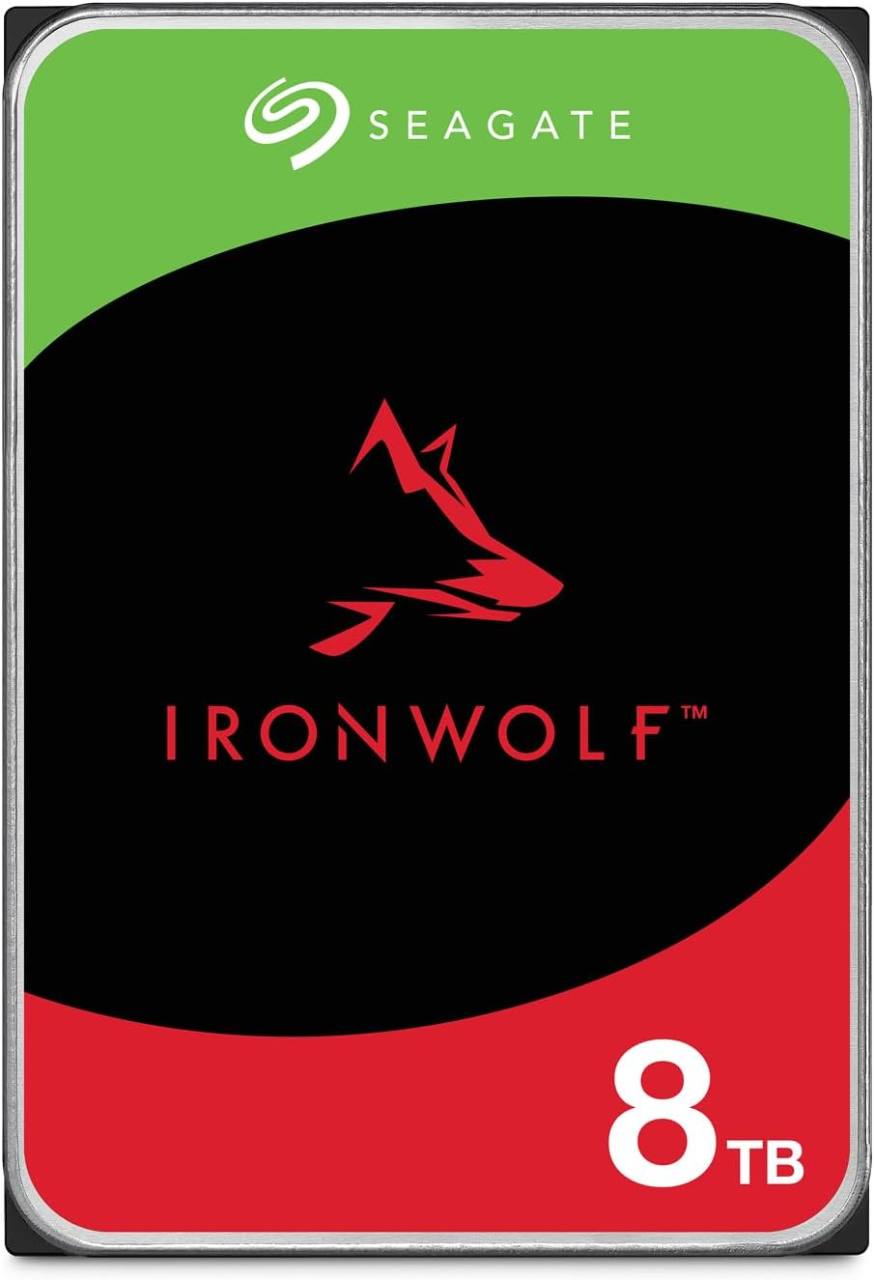
Seagate IronWolf 8TB NAS
A practical NAS drive size for Plex libraries, file shares and home server storage.
Check on Amazon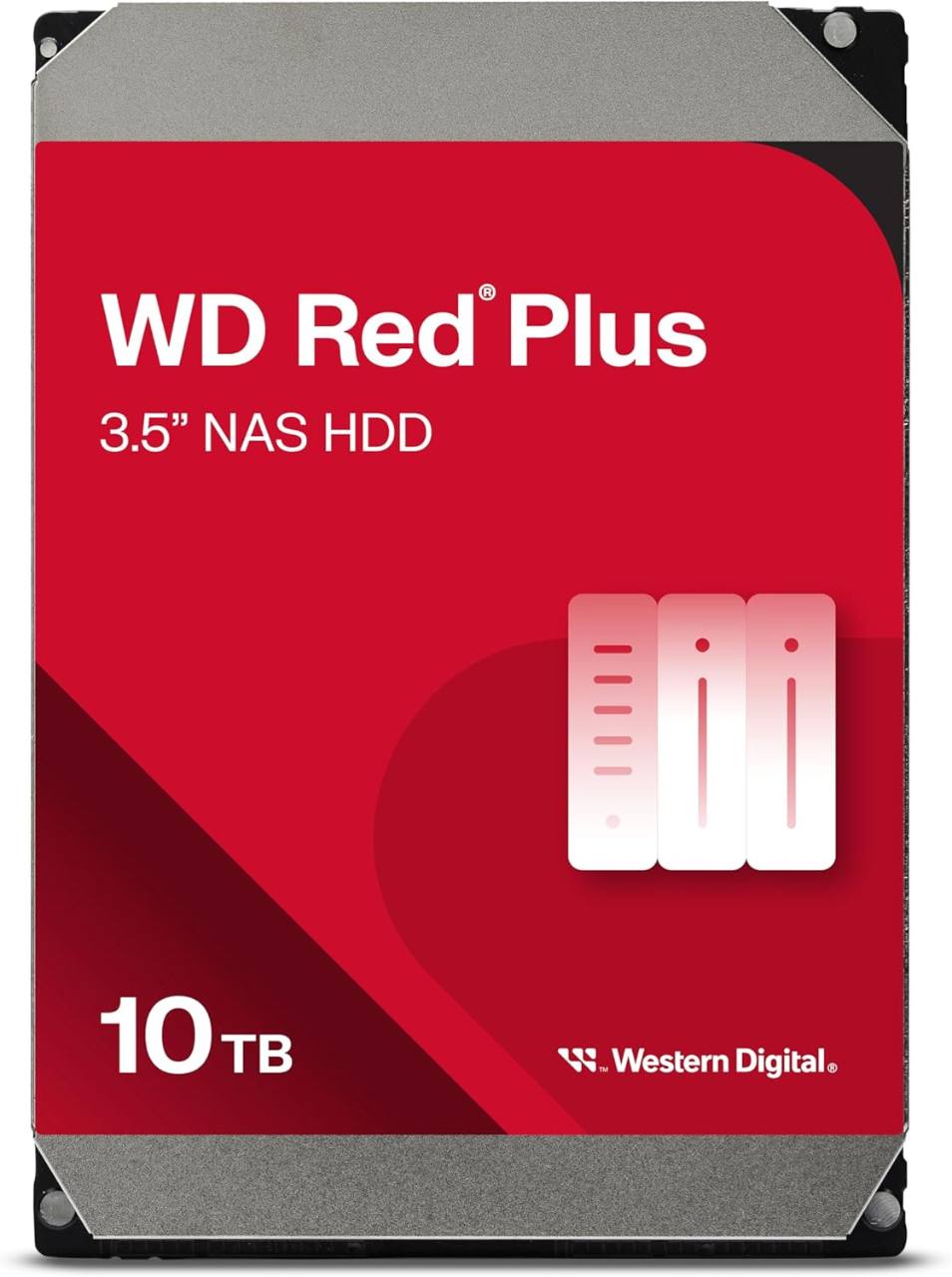
Western Digital 10TB WD Red Plus
A popular NAS-focused option for larger media libraries and shared storage.
Check on Amazon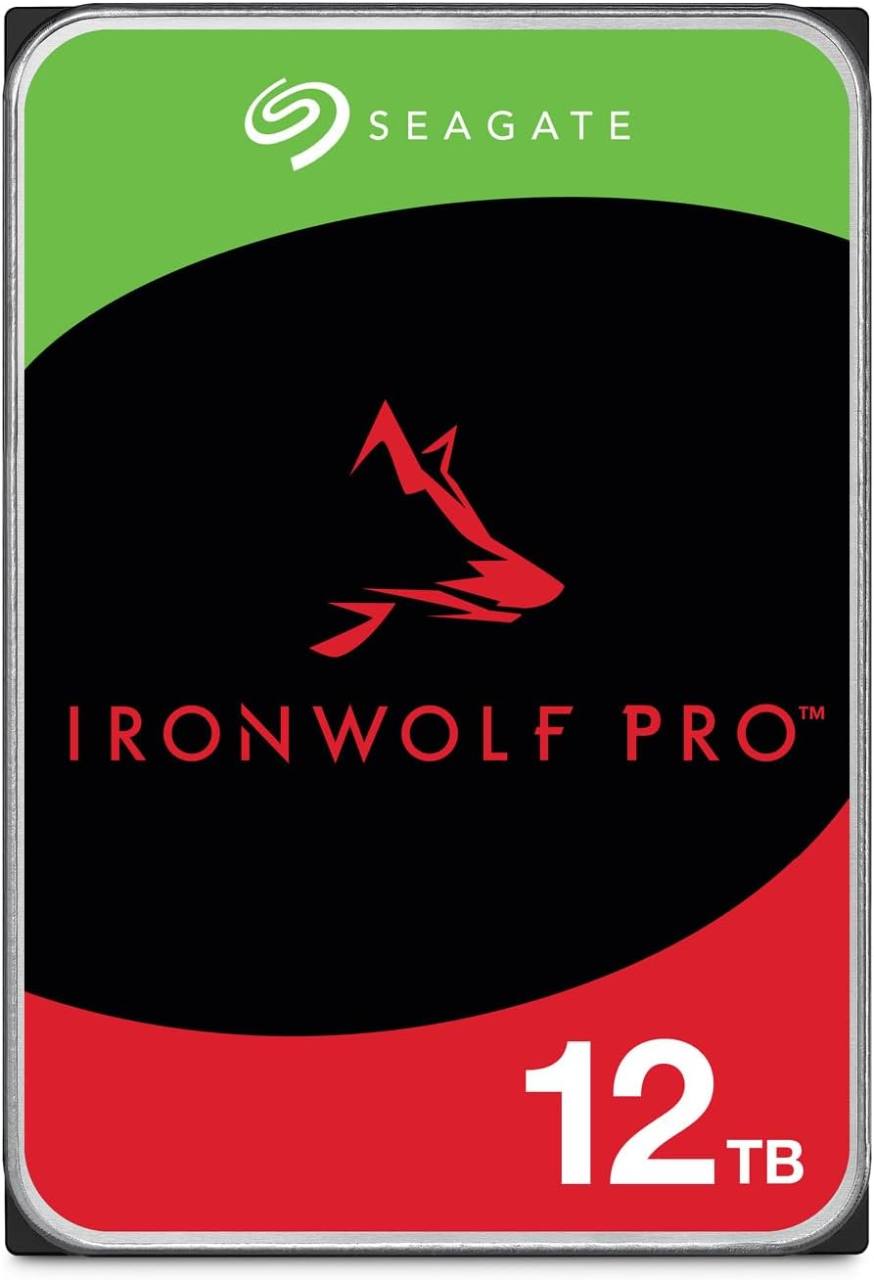
Seagate IronWolf Pro 12TB
A higher-capacity NAS drive for heavier storage needs and bigger arrays.
Check on Amazon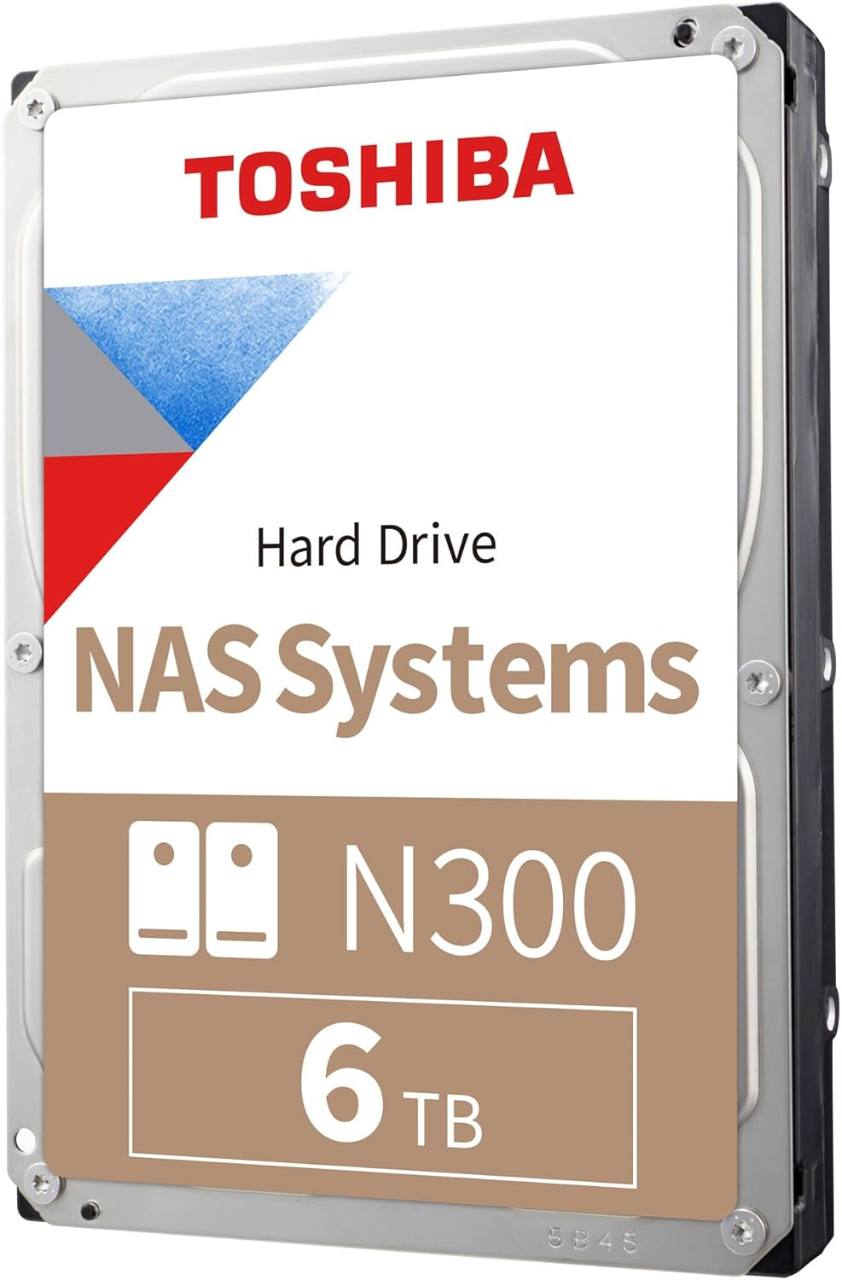
Toshiba N300 Internal Hard Drive 6TB
A NAS-class drive option for smaller arrays, backups and budget-conscious builds.
Check on AmazonShould you disable spin down?
- For active servers:
Disable aggressive sleep or use a long idle timer. Plex, Jellyfin, Docker and Home Assistant usually benefit from responsive storage.
- For archive NAS units:
Use a longer sleep timer if the server is rarely touched and mainly wakes for backup windows.
- For mixed workloads:
Start conservative, watch the logs and listen for constant spin-up behavior. If drives wake all day anyway, sleep is not helping much.
- For reliability:
Use NAS-class drives, keep backups separate, monitor SMART health and never treat RAID as your only backup.
The best configuration depends on how you use your server. If your NAS is working throughout the day, keeping the drives running is often the better choice.
Sometimes, letting your drives keep spinning is exactly what they were designed to do.
FAQ
Does drive sleep save electricity?
Yes, it can save some power, but the savings must be balanced against slower access and repeated spin-up behavior.
Will sleeping drives damage my NAS?
Sleep itself is not automatically bad, but aggressive timers can create frequent start-stop cycles. Match the timer to the workload.
Should Plex users disable drive sleep?
For an active Plex server, usually yes or at least use a long idle timer. Library browsing, metadata and playback feel better when storage is ready.
Is RAID enough protection?
No. RAID can help with uptime, but it is not a real backup. Keep separate backups for important data.